تحويل جدول البيانات إلى JSON مجانًا وبدون رفع

جارٍ تحميل الأداة…

PDF, image and document tools

Merge PDFs, convert images, extract text and more.

Popular tools

تحويل جدول البيانات إلى JSON مجانًا وبدون رفع

تحويل جدول البيانات إلى JSON: صدّر كل ورقة من مصنف XLSX أو XLS أو ODS كصفوف JSON، باستخدام قيم الخلايا المحفوظة. تعمل الأداة داخل متصفحك، فتبقى ملفاتك على جهازك.

طريقة استخدام تحويل جدول البيانات إلى JSON

  1. اختر ملفات Excel (XLSX) أو اسحبها إلى الصفحة.
  2. راجع الإعدادات إذا أردت تغييرها.
  3. شغّل الأداة.
  4. نزّل النتيجة.

معلومات مفيدة

  • تقبل Excel (XLSX).
  • مجاني بالكامل ولا يحتاج إلى حساب. تتم معالجة ملفاتك داخل متصفحك ولا تُرفع إلى أي خادم، إلا إذا اخترت بنفسك وضع المعالجة الخاصة على الخادم.

مجاني بالكامل ولا يحتاج إلى حساب. تتم معالجة ملفاتك داخل متصفحك ولا تُرفع إلى أي خادم، إلا إذا اخترت بنفسك وضع المعالجة الخاصة على الخادم.

أسئلة عن تحويل جدول البيانات إلى JSON

هل تُرفع ملفاتي لاستخدام أداة تحويل جدول البيانات إلى JSON؟
لا. تعمل أداة تحويل جدول البيانات إلى JSON داخل متصفحك افتراضيًا، فتبقى ملفاتك على جهازك. يمكن تفعيل وضع معالجة خاصة على الخادم لبعض الأدوات، وهو متوقف ما لم تختره بنفسك.
ما الملفات التي تقبلها أداة تحويل جدول البيانات إلى JSON؟
تقبل Excel (XLSX). تقبل معظم المهام حتى 100 ملف بحجم إجمالي يقارب 67 ميغابايت. تعرض كل أداة حدودها قبل أن تبدأ.
هل أداة تحويل جدول البيانات إلى JSON مجانية؟
نعم. كل أدوات Solveyt مجانية ولا تحتاج إلى حساب.

أدوات ذات صلة

آخر مراجعة 2026-11-26. كيف نتعامل مع بياناتك

All tools

Choose a category or search for a tool.

Loading tools…

See the result. Try the tool.

Real sample files, processed with the same tools you use.

1 of 3

Merge PDFs

Arrange your files and combine them into one PDF.

Merge PDF
Before2 separate PDFs
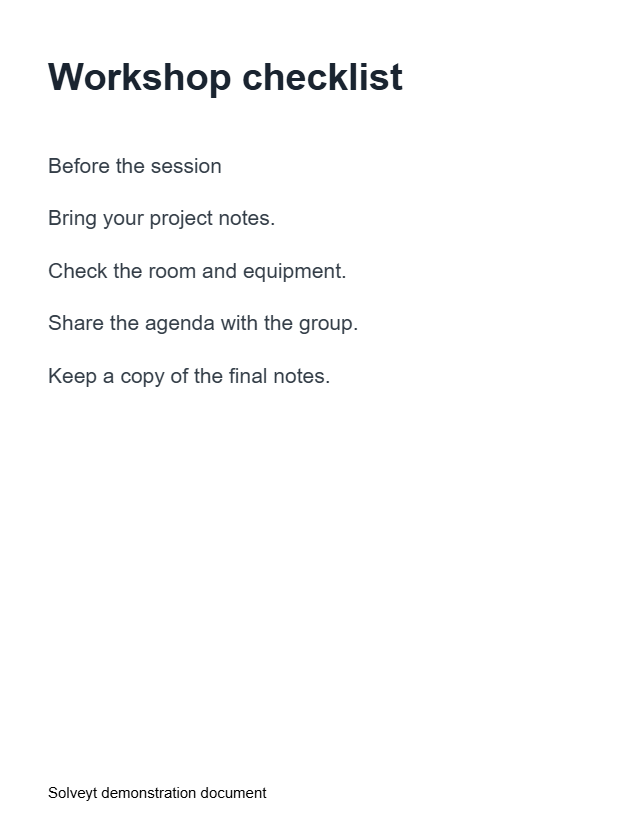
Workshop agenda PDF pageWorkshop checklist PDF page
After1 PDF · 2 pages
First page of the merged PDFSecond page of the merged PDF

Convert images

Save images as JPG, PNG or WebP.

Convert images
BeforePNG image
Earth photographed by the Apollo 17 crew, PNG input
AfterJPEG image
The same Earth photograph converted to JPEG by Solveyt

Photo: NASA / Apollo 17 crew. Source

Read scanned text

Extract printed text and correct it in the preview.

Scan to text
BeforeScanned page
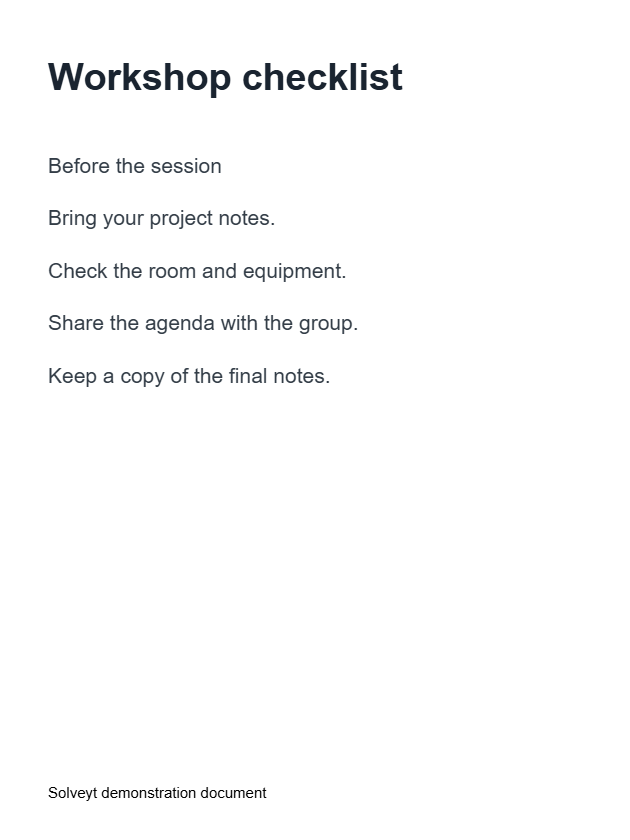
Printed workshop checklist used as the OCR input
AfterExtracted text
Workshop checklist
Before the session

Bring your project notes.

Check the room and equipment.
Share the agenda with the group.
Keep a copy of the final notes.

Solveyt demonstration document

Find tools by file type

How to use a tool

  1. Choose a tool

    Search by task or browse a file category.

  2. Add and preview

    Add your files, adjust the options and review the preview.

  3. Save the result

    Download your finished file, or save a batch as ZIP.

Using the tools

Can I process several files at once?

Use Add more files to build a batch. In tools that combine files, drag the handles or use the move buttons to set their order.

Can I choose specific PDF pages?

Use Split PDF to keep selected pages. Use Reorder PDF pages to change their order, or Remove PDF pages to delete them. Page selection accepts ranges such as 1-3, 5.

Which image formats can I export?

Image tools export JPEG, PNG and WebP. Select the output format in Options. The accepted input types and limits are listed in each tool.